
InkFrog shut down: fix listings, pick an alternative

In this guide
TL;DR: InkFrog is gone, but your eBay listings are still up. What broke is anything they loaded from InkFrog’s servers: template designs, banners, and photos in the description. If InkFrog kept your quantities in sync with a store, replace that first, so you don’t sell anything twice. Then find “inkfrog” in your listings’ description code and delete it. eBay’s bulk editor can fix listings that share a template all at once. Put your photos in eBay’s own gallery and keep the description plain, and nothing in it depends on a tool staying in business. Last, pick an InkFrog alternative for the job you actually used it for.
InkFrog shut down on June 1, 2026, and its servers went with it. Below: what that broke in your eBay listings, how to find and fix the affected ones, and how to choose an InkFrog alternative. Rules, screens, and tools are as of June 2026.
What happened to InkFrog?
InkFrog, the eBay listing and template tool Wix bought in 2020, emailed its customers on April 29, 2026 that it would close on June 1 (Value Added Resource quoted the email). The notice gave no reason. Customers could export their listing data as a CSV file from the dashboard until May 31, and unused days of a subscription were to be refunded after the close.
There’s no way back in now: the dashboard closed with the service on June 1, and InkFrog’s Shopify app, inkFrog for eBay, stopped with it. Anything that lived only in InkFrog, such as drafts, scheduled listings, and saved templates, is gone unless it was in your export. Your eBay listings themselves are safe: they live on eBay, and InkFrog closing didn’t end them.
What broke in your eBay listings?
Anything a listing loaded from InkFrog’s servers. A typical InkFrog template pulled its banner, logo, layout graphics, and often extra product photos from InkFrog addresses, such as imgs.inkfrog.com, its image server. Those addresses no longer answer, so buyers see:
- broken-image icons or empty boxes in the description;
- a missing header, logo, or banner where the template’s design was;
- a plain or half-empty description, on the site and in the eBay app;
- no gallery of your other items, if your template had one.
The photos at the top of the listing are usually fine. When a listing’s photos come from another server, eBay copies them to its own picture service, except in listings with variations (eBay’s developer guide to picture hosting). If you sell sizes or colours in one listing, check its main photos too.
How do you find the affected listings?
Assume every listing InkFrog created or revised with a template is affected, then confirm:
- Look at a few as a buyer. Open three or four of your older listings, on a computer and in the eBay app, and scroll to the description. Broken icons or an empty layout mean the template is still calling InkFrog.
- Search the code. Open one listing in Seller Hub as if to edit it, switch the description to
its HTML view, and search the code (Ctrl+F, or Cmd+F on a Mac) for
inkfrog. Every address that contains it points to a server that’s gone. - Group them. Listings made with the same template carry the same code, so one check stands for the whole group. If you listed everything through InkFrog, plan on fixing every listing from before the shutdown, starting with the ones that sell most or cost most.
If you saved InkFrog’s CSV export, keep it: it’s your record of what you listed through it.
How do you fix broken InkFrog templates?
Revise each listing in place; don’t end it and relist. Revising keeps the item number, the watchers, and the listing’s sales history, which eBay’s search counts.
Fixing one listing
- In Seller Hub, go to Active listings and select Edit on the listing.
- Switch the description to its HTML view.
- Delete every image tag (
<img) withinkfrogin its address. If the layout falls apart without them, delete the template code entirely and keep the text: condition, measurements, what’s included, and your terms. - Save the change, then check the listing on the site and in the app.
Fixing many listings at once
eBay’s bulk editor can make the same change across listings that share a template:
- In Seller Hub’s Active listings, tick the listings (or Select all), then select Edit. The editor takes up to 2,000 listings (eBay’s help on bulk listing tools).
- Choose the item description, then its find-and-replace option, and tick the HTML box so it searches the code rather than the visible text.
- Paste the exact InkFrog block from one listing’s code into Find, and leave Replace empty or put plain text there.
Sellers in eBay’s community report that it changes a listing only when the code matches exactly, character for character, and that it has been unreliable at times (eBay Community). Run it on two or three listings first and check them before you run the rest. If the code differs from listing to listing, a bulk editing tool is quicker; several of the template tools below offer one.
Putting the photos back
If your template showed extra photos inside the description, move them into the listing’s own photos: eBay takes up to 24 per listing and holds them itself (eBay’s help on photos). Photos in the description were a weak spot before the shutdown anyway: buyers rarely scroll that far, and on phones they often don’t show properly (Auction Nudge’s guide to mobile listings). Upload them from your own copies, since nothing can be recovered from InkFrog’s server. If your copies are gone too, the photos at the top of your listings are still on eBay.
Our take: the plainest fix lasts longest. Put every photo in eBay’s gallery, fill in the item specifics, and keep the description to text: black text on a plain background, as ChannelX’s guide to listings for mobile buyers has advised since 2015. Nothing in a listing like that depends on a tool staying in business, and eBay’s search reads the item specifics anyway (our guide to eBay search and Cassini covers what it ranks on).
What if InkFrog kept your quantities in sync?
InkFrog also connected eBay to stores such as Shopify and BigCommerce. That stopped on June 1 as well, so if you still sell the same items in both places, every sale has to come off the other side by hand until something replaces it. Selling an item twice costs more than the sale: on eBay, cancelling an order because the item is out of stock counts as a transaction defect against your seller standards.
What’s the best InkFrog alternative?
The best one replaces what you used InkFrog for, and no more. Most “best InkFrog alternatives” lists are written by one of the tools on them, so decide these first:
- Where you want to make listings: in eBay’s own listing form, or in a tool that sends them to eBay.
- Where you sell, or want to: eBay alone, eBay and a store, eBay and Amazon, or resale apps such as Poshmark and Mercari as well.
- Whether you need a template at all. A plain description with good photos and complete item specifics can’t break.
- Where it keeps your photos. InkFrog’s closing broke the images it hosted. Ask whether a tool puts your photos into eBay’s own gallery or keeps them on its servers.
- How you’d leave. Check that a tool exports your listings before you need it to.
Then match the job to the kind of tool:
| What you need | Kind of tool | Examples |
|---|---|---|
| eBay only, no template | eBay’s own tools | eBay’s listing form, Seller Hub’s bulk editor |
| eBay templates, bulk editing, scheduling | eBay-focused listing tools, the closest to how InkFrog worked | 3Dsellers, Auctiva, CrazyLister, Frooition, SixBit |
| eBay plus Amazon or a Shopify store, listed and kept in sync from one place | Listing and syncing across eBay, Amazon, and Shopify | KickSync (ours) |
| One-off items on resale apps as well as eBay | Reseller cross-listers | List Perfectly, Vendoo, Crosslist |
| A Shopify store that leads, with eBay following | Shopify-centred apps | Shopify’s Marketplace Connect, LitCommerce |
| Large catalogues, warehouses, Amazon FBA | Inventory platforms | Listing Mirror, SellerChamp, SureDone, GeekSeller |
Prices and trials change often, so check each tool’s own page. Several of them offer help moving from InkFrog, including importing its CSV export, and Value Added Resource’s roundup lists what six of them offered InkFrog sellers.
Where does KickSync fit?
We’re a little biased, of course. But if you sell beyond eBay, on Amazon or in your Shopify store, or want to, we think KickSync is the best InkFrog alternative, for three reasons:
- List wherever you like. List an item in KickSync and it goes to your Shopify store, eBay, and Amazon in one action. Or keep listing on eBay or Amazon the way you do now: your listings come in automatically, and Auto-Publish lists each new one in your Shopify store (and on eBay, if you list on Amazon). If you list on eBay, your items are matched to Amazon ASINs automatically; once you confirm a match, it’s ready to go.
- Each place gets the data it’s searched by. The catalog product and item specifics on eBay, the match to Amazon’s catalog, and the product data Google Shopping reads in your Shopify store.
- One quantity everywhere. Items list with their photos, price, and details, and after that their quantities stay in sync: when something sells, your other channels update in minutes, not hours, so you don’t sell it twice. Each place can keep its own price.
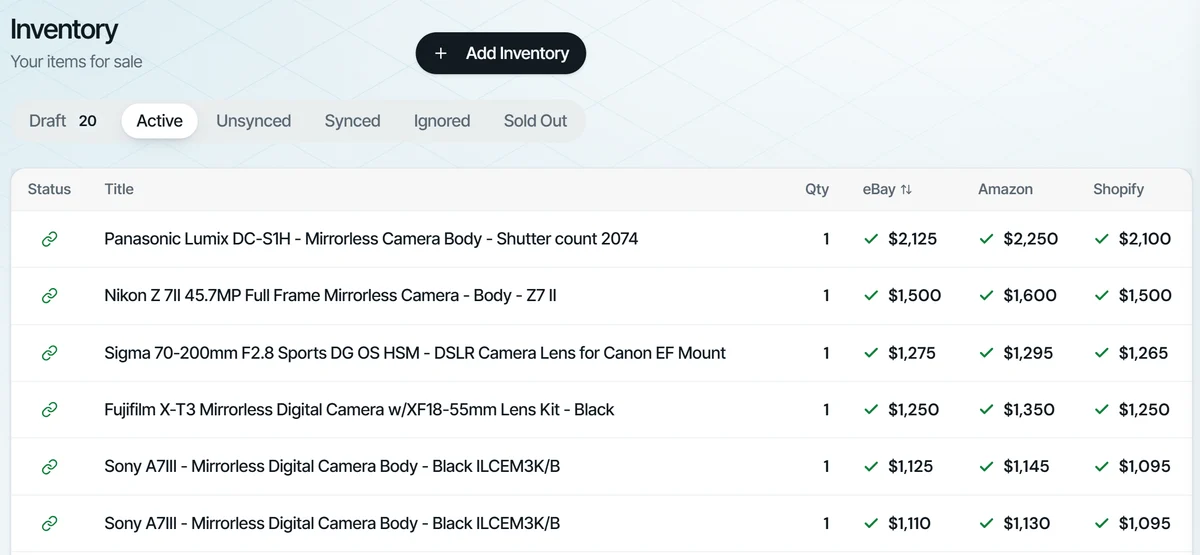
It doesn’t repair old InkFrog descriptions; the steps above do that. More on how it works for eBay sellers, and on selling your eBay items in more places.
Common questions
Can you still log in to InkFrog?
No. The dashboard closed with the service on June 1, 2026.
Can you still export your InkFrog data?
No. The CSV export ran until May 31, 2026. Your active listings are still on eBay, though, and most tools that connect to eBay can import them straight from there.
Will you get a refund from InkFrog?
InkFrog’s notice said unused days in the billing cycle would be refunded after the close, calculated by the day and returned to the original payment method (Value Added Resource).